NSFW images are not allowed. All image uploads are checked.
Seedance 2.0. Direct a scene with images, movement, and sound.
Explore Seedance 2.0 examples across different scenes, then try your own idea.
Winter atmosphere
Seedance 2.0
Animal motion
Seedance 2.0
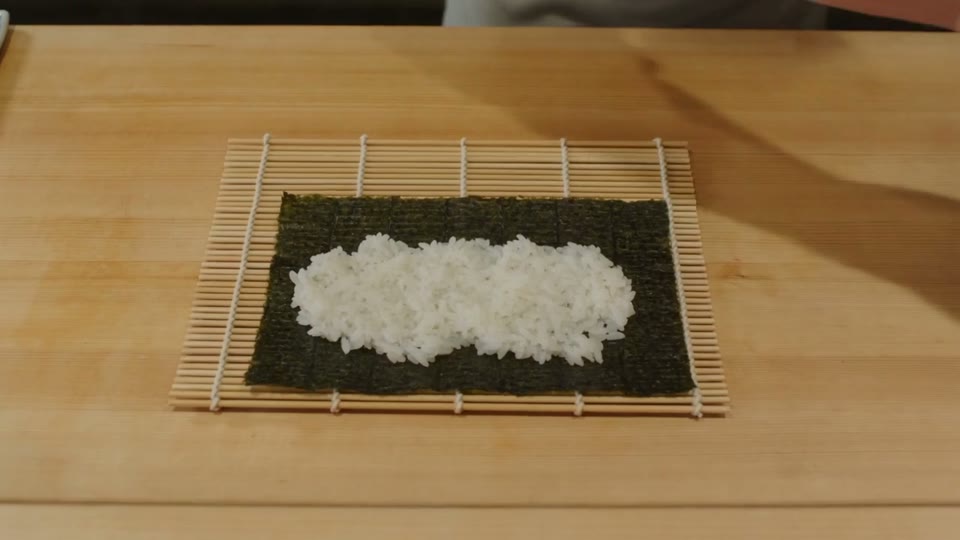
Food preparation
Seedance 2.0
Seedance 2.0 AI Video Generator
Seedance 2.0. Direct a scene with images, movement, and sound. Turn a text brief or reference set into a short video. This page includes the standard model and Mini, so you can choose a version before setting up your shot.
Explore the Seedance 2.0 controls available in this workspace, from your first input to the finished video.
Seedance 2.0
Seedance 2.0: Camera movement and atmosphere
Seedance 2.0. Give the camera a simple path through a scene. The snowy cabin example pairs a gradual approach with environmental motion. Describe the pace of the shot and the weather separately, leaving room for the action to unfold.
Seedance 2.0
Seedance 2.0: Track a moving subject
Seedance 2.0. Describe both the subject movement and how the camera follows it. The meadow example places an active animal against a detailed environment. Keep the central action simple, especially when adding secondary motion such as insects or wind.
Seedance 2.0
Seedance 2.0: Hands and process detail
Seedance 2.0. Break a process into clear physical actions: reach, place, and finish. The sushi example focuses attention on the chef’s hands and ingredients. Choose a suitable duration and avoid asking a short clip to cover an entire recipe.
Use references with Seedance 2.0
Give each input a clear purpose in your Seedance 2.0 brief. A reference can anchor what should stay recognizable; the prompt explains what should change. Use only the reference controls offered for the selected version.
Refine a Seedance 2.0 result
Compare the output with the brief before changing several settings. Keep the successful composition, then adjust one detail in the next Seedance 2.0 attempt. Save a useful prompt so you can develop related variations.
Seedance 2.0 input guidance
Keep first-frame inputs separate from multimodal references. An ending frame needs a starting frame; sound references need a visual reference.
Made with Clipin
Use cases
Choose a focused brief for your next Seedance 2.0 project. These starting points help you plan what to generate.
01
Seedance 2.0 for a consistent character vignette
Use a character reference to stage a small action in a new setting, with a clear camera direction. Use Seedance 2.0 to explore the scene, then adjust the framing, light, or action to suit your project.
02
Seedance 2.0 for winter cabin approach
Combine a slow camera move with snow and warm interior light. Use Seedance 2.0 to explore the scene, then adjust the framing, light, or action to suit your project.
03
Seedance 2.0 for chef’s finishing touch
Focus on one precise hand movement and the finished dish. Use Seedance 2.0 to explore the scene, then adjust the framing, light, or action to suit your project.
Start free. Grow when you’re ready.
One credit balance for video, image, and voiceover creation.
Starter
For occasional creation
$24/month$29
Billed $288 yearly · Save $60
Models included
MiniMax H3
Seedance
FLUX 3
Seedream
Nano Banana
500 credits per month
Up to 13 fast videos
Up to 166 images
UGC templates & Story creation
Image generation & editing
AI voiceovers
Preview & download
Credit top-ups available
Recommended
Creator
For regular content creation
$65/month$79
Billed $780 yearly · Save $168
Models included
MiniMax H3
Seedance
FLUX 3
Seedream
Nano Banana
1,600 credits per month
Up to 42 fast videos
Up to 533 images
UGC templates & Story creation
Image generation & editing
AI voiceovers
Preview & download
Credit top-ups available
Lowest credit price
Studio
For high-volume creation
$182/month$199
Billed $2,184 yearly · Save $204
Models included
MiniMax H3
Seedance
FLUX 3
Seedream
Nano Banana
5,400 credits per month
Up to 142 fast videos
Up to 1,800 images
UGC templates & Story creation
Image generation & editing
AI voiceovers
Preview & download
Credit top-ups available
Credits are shared across images, videos and voiceovers. Monthly credits don’t roll over.
Seedance 2.0 creates video outputs from the supported inputs on this page. Turn a text brief or reference set into a short video. This page includes the standard model and Mini, so you can choose a version before setting up your shot.
Which Seedance 2.0 version is available here?
Standard and Mini in one workspace. Keep first-frame inputs separate from multimodal references. An ending frame needs a starting frame; sound references need a visual reference. The model selector and form show the choices available for your Seedance 2.0 generation.
How do I start a Seedance 2.0 generation?
Write a brief, choose your output settings, and add optional inputs where needed. Review the displayed credit estimate, then submit your Seedance 2.0 request. Follow the account prompt if sign-in is required.
What settings does Seedance 2.0 offer?
Choose an explicit duration from 4–15 seconds. Add image, video, or audio references with the matching controls, or begin with text alone. Available controls come from the selected Seedance 2.0 model, so changing a version can change its options.
How should I write a Seedance 2.0 prompt?
Describe the subject and the intended result first. Use a character reference to stage a small action in a new setting, with a clear camera direction. Add useful lighting and composition details to your Seedance 2.0 prompt, and remove instructions that conflict with one another.
Can I edit a Seedance 2.0 starter prompt?
Yes. Use prompt replaces the current prompt with the selected example. Edit it before generating with Seedance 2.0; choosing a starter does not submit a request or spend credits.
How much does Seedance 2.0 cost?
The generator displays an estimate for the selected settings. Seedance 2.0 credit usage can vary with the version and output options. Review the estimate before generating and check your account for available credits.
Are the Seedance 2.0 examples guaranteed results?
No. The examples show model outputs for inspiration. Your Seedance 2.0 result depends on its inputs and settings, and separate generations can differ. Review each output before including it in your finished project.
Make your next idea with Seedance 2.0.
Start with a clear Seedance 2.0 prompt, choose your settings, and make the result your own.
 Seedance 2.0