
AI Background Remover for Product Images and Transparent Assets
Use the AI background remover when a product photo, portrait, or reference image needs a cleaner cutout. Upload one image, remove background distractions, and prepare a transparent background asset that can move into thumbnails, image editing, product cards, social posts, or brand layouts.
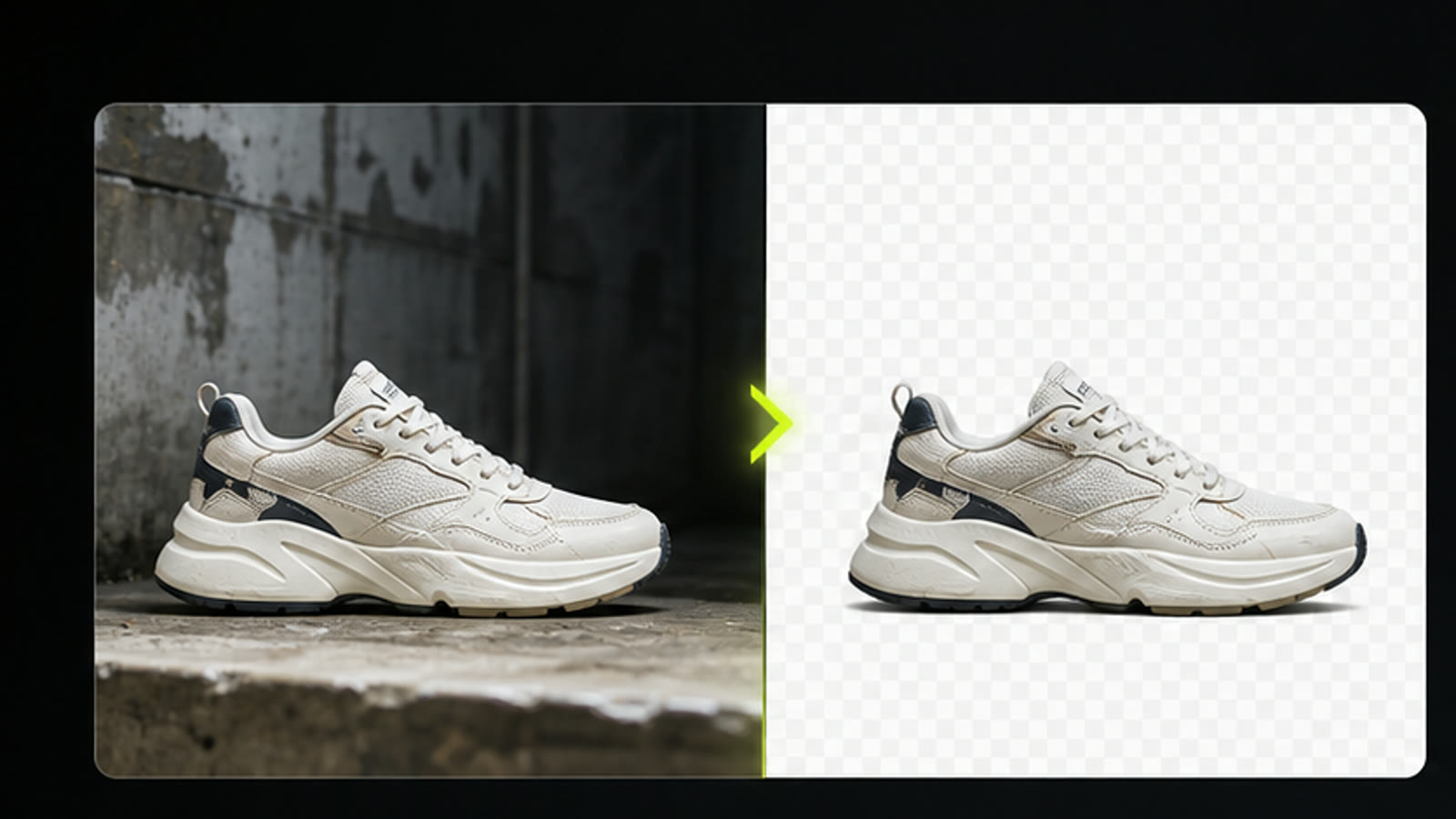
Practical fit
AI background remover: practical buying guide
Use this page to decide whether AI Background Remover is the right Clipin workflow before you spend more credits, not as a promise that every generation will be final on the first try.
When this page is a good fit
- AI background remover is useful when cleaning owned product images, portraits, and thumbnail assets that need a transparent or simpler background.
- Choose AI background remover when you need to inspect edges, hair, product outlines, and transparent areas before using the result.
- AI background remover is worth credits when you regularly prepare product cards, marketplace images, or creator layouts that need clean cutouts.
- Use AI background remover output as the cutout can move into Clipin image editing, upscaling, product layouts, or video planning.
- Review AI background remover results before scaling a batch.
- AI background remover works best when the source material and prompt are clear.
- Keep AI background remover realistic: busy edges, low contrast, or unauthorized source images still need human review.
- Compare AI background remover variations before buying more credits.
- AI background remover can support paid projects when the result passes your own review.
- Start small with AI background remover, then spend more only after one result proves useful.
- AI background remover should save time without replacing judgment, rights checks, or creative review.
- Use AI background remover inside Clipin when you want a practical asset, not just a demo result.
Related workflows to understand first
remove background helps when you need the background removed before placing an asset in a new design.
Use remove background as a checkpoint before spending more credits.
remove background should produce an asset you can inspect, keep, edit, or reject.
product image background remover helps when you are preparing product images for cleaner listings or ads.
Use product image background remover as a checkpoint before spending more credits.
product image background remover should produce an asset you can inspect, keep, edit, or reject.
transparent background helps when you need transparent-background assets for thumbnails, catalogs, or social layouts.
Use transparent background as a checkpoint before spending more credits.
transparent background should produce an asset you can inspect, keep, edit, or reject.
Why Use the AI Background Remover?
the background cleanup flow is designed for creators who need cleaner inputs for product pages, social posts, thumbnails, profile graphics, and image editing. It focuses on one job: separate the subject from a single uploaded image and make the result easier to reuse.
One-Image Background Cleanup
Upload one source image and let the AI background remover separate the subject from the scene. This focused flow is useful when you need to remove background clutter before building a product card, social thumbnail, profile image, or transparent design asset.
Reusable Cutout Output
The page is planned around a transparent background workflow, so a cleaned subject can be placed on branded colors, catalog layouts, profile graphics, or campaign mockups. That makes this page a practical support tool for content planning.
Product Image Background Remover for Commerce Assets
Use this page as a product image background remover when a catalog photo needs to become a cleaner commerce asset. A cutout product can sit on a launch slide, comparison frame, thumbnail, marketplace card, or later image-to-video starting point.
Creator Portraits and Subject Cutouts
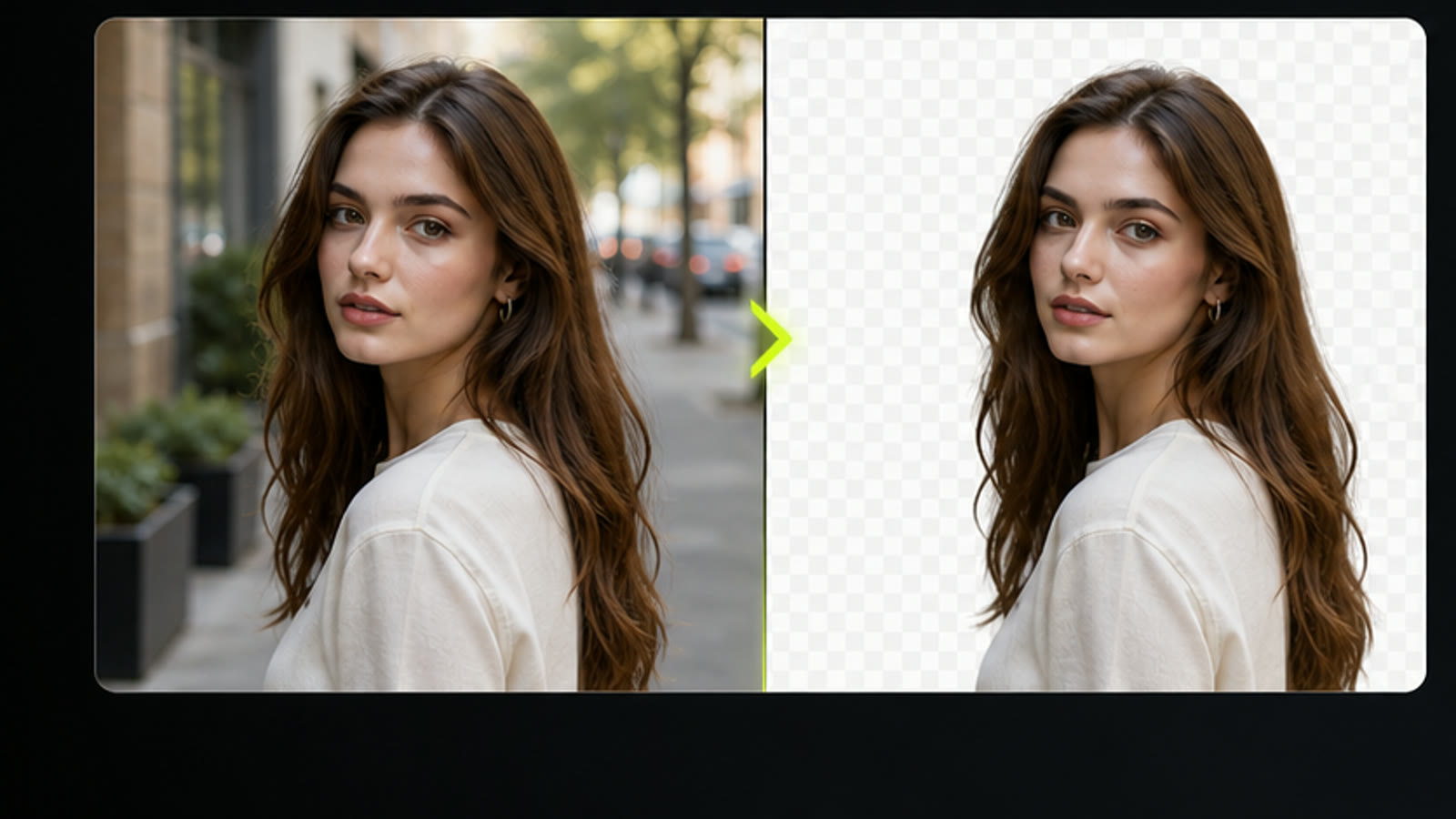
The AI background remover can help prepare portraits, creator photos, and object shots for layouts where the original room, wall, or desk is not part of the story. Keep the subject, then compose the next asset.
Credit-Aware Asset Preparation
The current background removal task consumes 1 credit per run, making this utility a lightweight cleanup step before more expensive image or video generation. Use it early when the source image needs a clearer subject.
Fits a Practical Image Workflow
After cleanup, the image can inform a thumbnail, product layout, profile graphic, ad concept, or reference asset for later content production. This step works well as part of a practical visual pipeline.
Simple Review Loop
Start the AI background remover task, wait for processing, then compare the result in the task list. If the source image is too complex, choose a cleaner product or portrait image and run another focused pass.
Useful Before Image Editing
A cutout asset is often easier to polish with an image editor because the subject is already separated. The AI background remover gives you a cleaner starting point before adding text, color, or motion ideas.
Honest Scope for Better Results
This page does not promise manual edge controls or multi-image processing. the AI background remover focuses on a single uploaded image, so clearer outputs usually come from clear lighting, visible subjects, and uncluttered source photos.
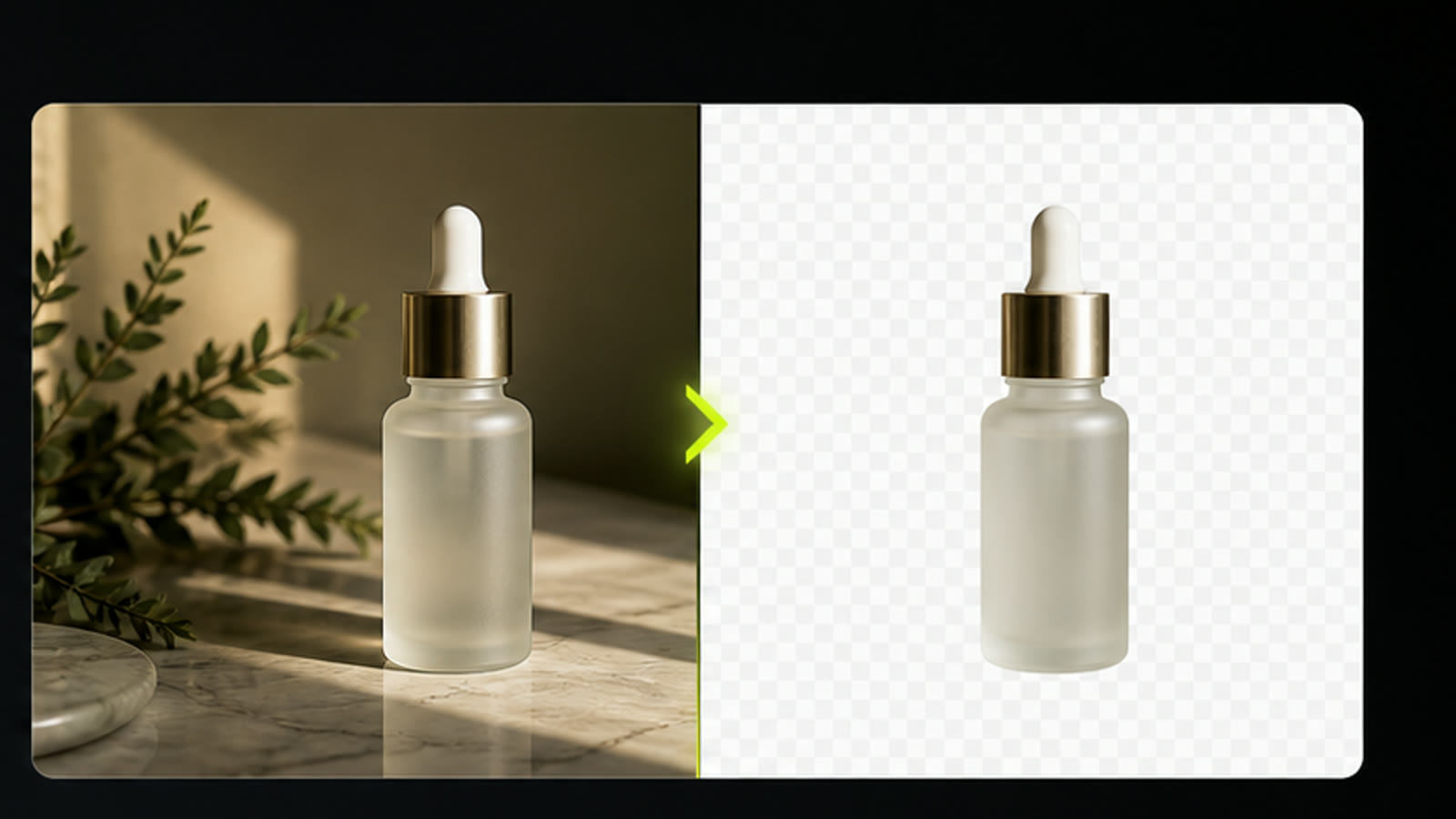
Clean One Image for the Next Creative Step
This cleanup flow is built for focused asset preparation: upload one image, spend the current 1-credit task cost, and review the cutout before using it in a product layout, thumbnail, profile graphic, or image-editing workflow.
Prepare Product Shots for Reuse
Use the AI background remover to remove background noise from a product image, creator portrait, or campaign visual, then continue with an image generator, image editor, or image upscaler page if needed.
Create a Transparent Asset for Social Content
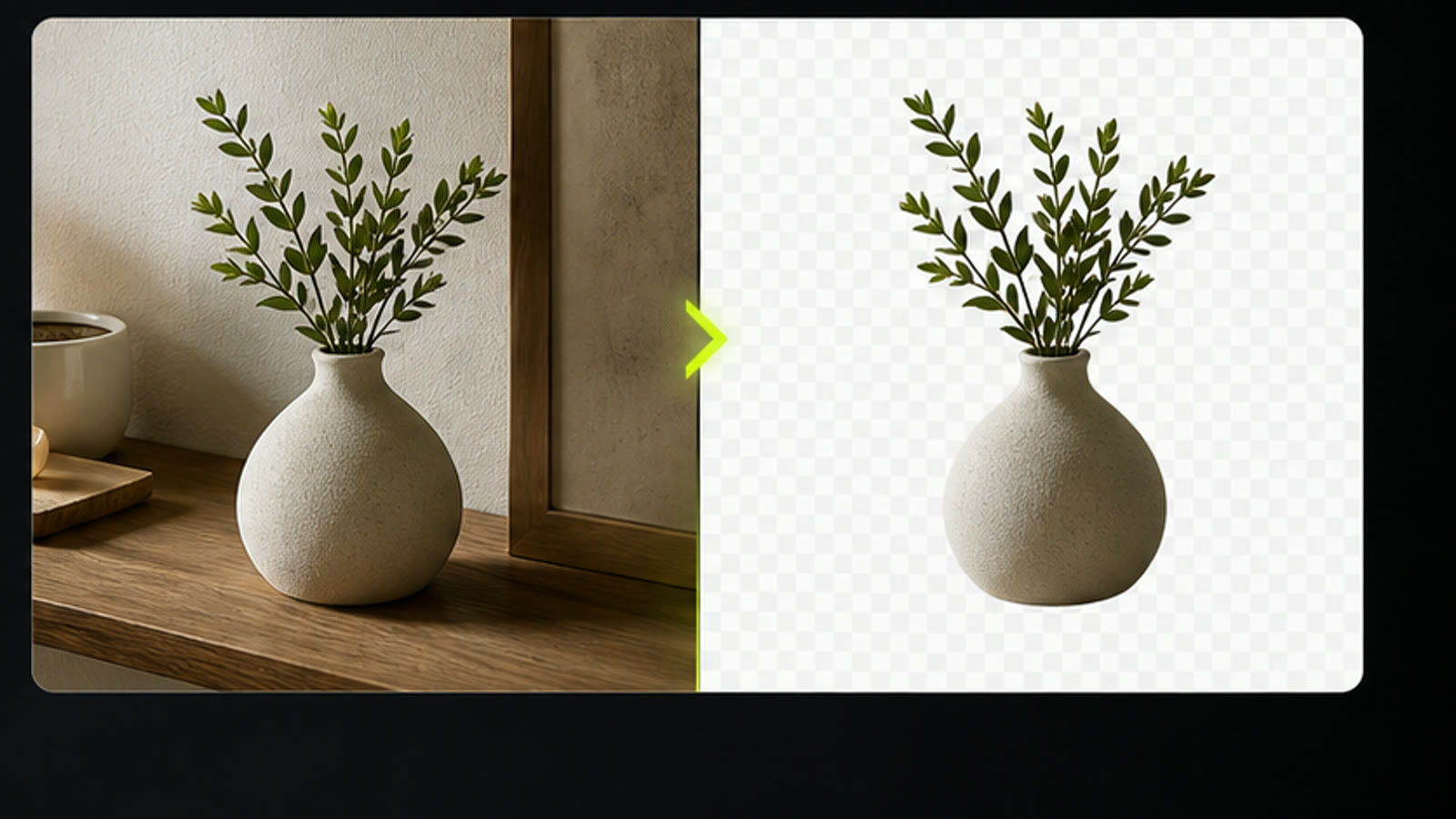
A transparent background makes it easier to place a subject on a thumbnail, promo layout, catalog card, profile graphic, or future first frame. the AI background remover helps creators move from messy source image to reusable visual asset.
AI Background Remover Questions
- the AI background remover is for preparing cleaner image assets before you design a thumbnail, product visual, creator post, or video reference. It helps remove background content from one uploaded image so the subject is easier to reuse.
- Upload a single image, start the task, and send it through the background removal model. When processing finishes, review the generated result in your task list and decide whether it is ready for your content workflow.
- The current background removal task is configured as a 1-credit run. This keeps it positioned as a lightweight preparation step before larger image generation, image editing, product layout, or content production work.
- Yes. Prompt improvement can help prepare a cleaner product cutout for a commerce layout, product comparison, launch thumbnail, catalog card, or first-frame concept.
- The result depends on the source image. Clear product photos, portraits, and high-contrast subjects usually work better than crowded scenes, overlapping objects, or very soft edges.
- The current page is built for one image per task. If you need several assets, run the task separately for each image and keep useful outputs for your next creative step.
- The current task estimate is about 15 seconds, though real timing can vary with queue and service conditions. Start with a clean image if you need a quick subject cutout for a draft.
- Use the cleaned subject in a thumbnail, product layout, image editor pass, or video planning workflow. The background cleanup step is most valuable when the output becomes part of a larger visual asset set.
- It can help when the subject needs to stand alone before you plan motion, but the page is useful even without video. For example, create a product cutout first, then use the cleaner asset in a catalog card, thumbnail, social post, or later product reveal.
- The AI background remover pairs naturally with the AI image generator, AI image editor, AI image upscaler, and content planning tools because it can help turn messy source photos into cleaner creative inputs.
Related Clipin tools
Continue from this tool into the adjacent generator, editor, or pricing page.