
MiniMax H3 AI Video Generator

Create short videos with MiniMax H3 from a written scene, a starting image, or subject references. Choose H3 Max, H3 Max Turbo, or H3 Max Reference in the shared editor, set your duration and resolution, and review the credit estimate before generating. MiniMax H3 brings motion and native audio into one clip, giving you a practical starting point for product stories, character scenes, and social content.

Create with MiniMax H3

From idea to moving image

Create your next scene with MiniMax H3

Explore the MiniMax H3 controls available in Clipin. Start with a clear subject and one action, then choose the model, references, and output settings that fit your shot.

H3 Max dialogue exampleH3 Max

MiniMax H3 Max for your first shot

The page opens with H3 Max already selected, so you can begin with a prompt immediately. Describe the subject, the action, the setting, and the camera movement in that order. MiniMax H3 works best as part of an iterative creative process: preview one focused shot, identify the detail that needs changing, and revise that detail before expanding your scene.
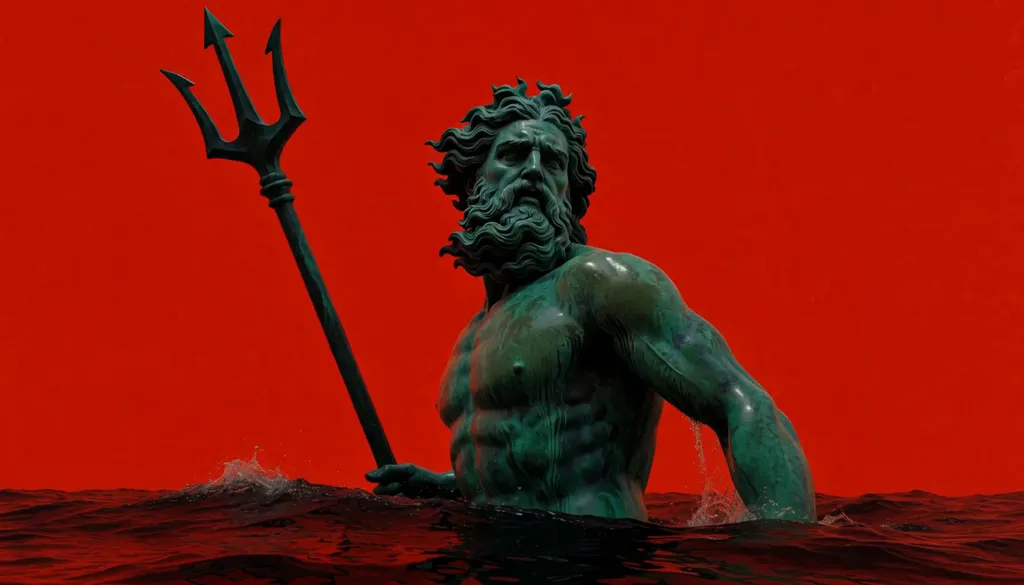
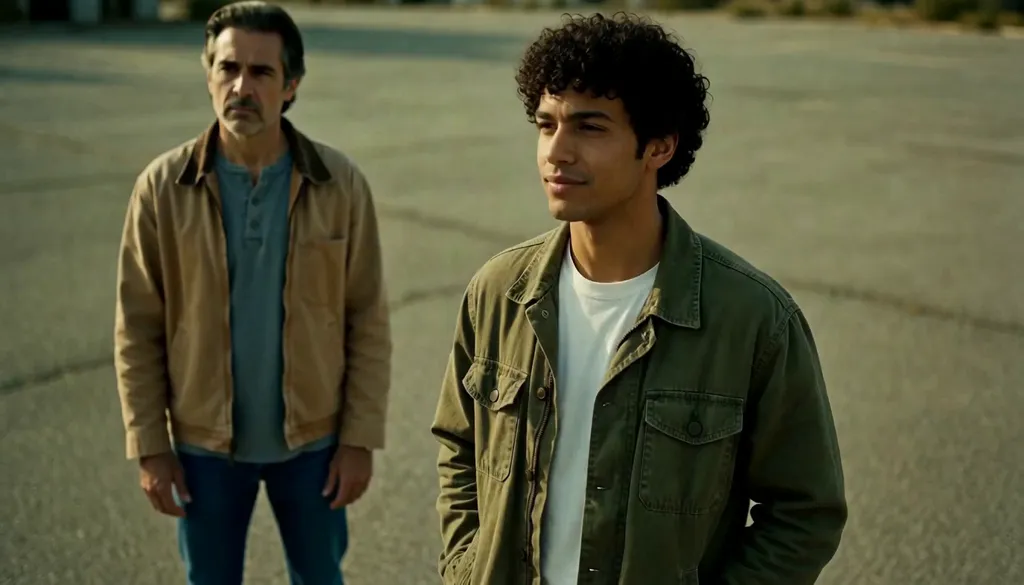
H3 Max Turbo motion exampleH3 Max Turbo

Explore MiniMax H3 Max Turbo

Switch to H3 Max Turbo when you want to explore alternative treatments of the same idea. Keep the prompt, reference image, duration, and resolution consistent while comparing variants. MiniMax H3 credit estimates update with your selected settings, helping you decide how much to spend on exploration before choosing a version to develop further. Actual waiting time depends on the generation queue.

H3 Max Reference character exampleH3 Max Reference

MiniMax H3 Reference for subjects

Choose H3 Max Reference to guide a scene with up to two subject images. Use clear images and identify them as Image 1 and Image 2 in your prompt when describing their roles. MiniMax H3 references are useful when a character or object matters to the concept. Check the generated appearance and interaction carefully rather than assuming every detail will stay identical.

Guide MiniMax H3 with first and last frames

H3 Max and Turbo accept an optional first frame and an optional last frame. A first frame establishes your composition; a last frame gives the shot an ending target. For MiniMax H3, choose images that can connect through a plausible action, such as a presenter lifting a product toward the camera. Explain the transition instead of listing two unrelated visual states.

Write sound into MiniMax H3 prompts

Native audio is generated with the video, with no separate audio switch in this workspace. Include a short spoken line, environmental sound, or a simple sound cue when it matters to your shot. After MiniMax H3 finishes, listen to the whole clip and check the words, voice, timing, and background sound. Treat audio review as part of selecting your final take.

Set MiniMax H3 clips from 5 to 15 seconds

Choose a duration between five and fifteen seconds in one-second increments. Give a shorter shot one clear action, and reserve longer clips for a sequence that needs time to unfold. MiniMax H3 prompts are easier to evaluate when the requested action fits the selected length. Avoid compressing a full story, several camera changes, and lengthy dialogue into a single brief clip.

Choose your MiniMax H3 resolution

H3 Max and Turbo offer 480P, 768P, and 1080P in the current editor. Reference offers 480P and 768P. Pick the setting that suits your review or intended use, and read the credit estimate after changing it. MiniMax H3 resolution controls affect the output size; a higher setting does not replace a clear composition, suitable references, or a well-defined action.

Compose MiniMax H3 for the right format

For Max and Turbo, the first image determines the frame shape; text-only generation uses a landscape frame. Reference exposes portrait, landscape, and square choices. Prepare a MiniMax H3 starting image with enough space around your subject for the intended movement. Check edges, headroom, and product placement before uploading, especially when the clip will later sit beneath captions or interface overlays.

Review and refine MiniMax H3 results

Sign in to generate and use the right-hand panel to review your results. Keep one variable at a time in focus, such as camera direction, the subject action, or a spoken line. MiniMax H3 revisions become easier to compare when the rest of the shot stays consistent. Download a completed clip after checking its visual continuity, sound, and suitability for your edit.

Make something worth watching

What will you make with MiniMax H3?

Build a MiniMax H3 prompt around a shot you can actually review. These starting points help you turn a broad concept into a concrete visual action.

MiniMax H3 product moments

Start with a clean product image and ask for one visible interaction: a hand rotates the bottle, a bag opens on a table, or a camera moves toward a textured surface. Describe lighting and camera distance so the product remains readable. With MiniMax H3, review labels, shape, and hand movement frame by frame before using a take. Keep any important sales text in your editing workflow so it stays accurate.

MiniMax H3 character and dialogue scenes

Use a short line of dialogue and a simple reaction to establish the scene. For two subjects, select Reference and assign each image a clear role in the prompt. Tell MiniMax H3 who speaks, how the other person reacts, and whether the camera stays still or moves. Leave enough time for the line to finish. Check facial motion, subject separation, and audio before connecting the shot to a longer story.

MiniMax H3 social hooks and visual cutaways

Turn one idea into a short opening moment, such as a surprising reveal, a close-up transformation, or an object moving into view. Decide the framing before choosing your source image or Reference aspect ratio. MiniMax H3 can supply a clip for your wider edit; add captions, brand elements, and the final call to action afterward. Compare the first two seconds of each take to choose the clearest opening.

Start free. Grow when you’re ready.

One credit balance for video, image, and voiceover creation.

Starter

For occasional creation

$24/month$29

Billed $288 yearly · Save $60

Models included

MiniMax H3
Seedance
FLUX 3
Seedream
Nano Banana
  • 500 credits per month
  • Up to 13 fast videos
  • Up to 166 images
  • UGC templates & Story creation
  • Image generation & editing
  • AI voiceovers
  • Preview & download
  • Credit top-ups available
Lowest credit price

Studio

For high-volume creation

$182/month$199

Billed $2,184 yearly · Save $204

Models included

MiniMax H3
Seedance
FLUX 3
Seedream
Nano Banana
  • 5,400 credits per month
  • Up to 142 fast videos
  • Up to 1,800 images
  • UGC templates & Story creation
  • Image generation & editing
  • AI voiceovers
  • Preview & download
  • Credit top-ups available

Credits are shared across images, videos and voiceovers. Monthly credits don’t roll over.

View full pricing and plan details

Before you press generate

Frequently Asked Questions

What is MiniMax H3 on Clipin?

MiniMax H3 is a video generation model family available through three options in this workspace: H3 Max, H3 Max Turbo, and H3 Max Reference. The page uses the same editor as other generation workflows, with H3 Max selected by default. Browse the provider examples to understand the output, then choose your own prompt and settings for a new clip.

Which MiniMax H3 option should I choose?

Begin with H3 Max for a text-led or first-frame shot. Try Turbo to compare another variant using the same inputs and visible credit estimate. Choose Reference when one or two subject images should guide the scene. MiniMax H3 variants expose different input and resolution choices, so review the editor controls after switching instead of assuming your previous settings all carry over.

Can MiniMax H3 generate a video from text alone?

Yes. Max and Turbo allow a prompt without a first-frame image. Describe a subject, an action, a location, and the camera behavior, then select the duration and resolution. MiniMax H3 text-only output uses a landscape frame in this integration. If composition is important, supply a first image that already has the framing you want the shot to follow.

How many images can I give MiniMax H3 Reference?

The Reference option accepts up to two subject images here. Select clear, useful views and refer to Image 1 or Image 2 when assigning actions. Reference inputs are fitted within a 1024-pixel longest side by the workflow. MiniMax H3 Reference currently offers portrait, landscape, and square output shapes with 480P or 768P resolution; this page does not expose video-reference uploads.

Does MiniMax H3 include sound?

Yes. These H3 options generate native audio together with the video. You can describe dialogue or sound cues in your prompt; there is no separate audio toggle in the current editor. Replay your MiniMax H3 result with sound enabled and check that speech, ambience, and timing suit the scene before downloading a take for use in your project.

How much does MiniMax H3 generation cost?

The editor shows a credit estimate for the selected model and output settings. Duration, resolution, and the chosen variant can change the estimate, so check it before submitting. MiniMax H3 generation requires signing in and having sufficient usable credits. The estimate in the workspace is the relevant price for your Clipin account; provider promotional prices are not a substitute for it.

How do I improve a MiniMax H3 prompt?

Use concrete actions and keep the shot manageable. Specify what moves, in which direction, and how the camera responds. Add a short line of dialogue only when it serves the scene. Review one MiniMax H3 result, then change the most important problem first. A consistent prompt structure makes it easier to compare takes and decide whether a new reference or model variant would help.

Where do my MiniMax H3 results appear?

After signing in, the workspace displays your generated results in the right-hand panel. The informational sections below the guest workspace are removed from the signed-in layout, leaving room to create and review. Completed MiniMax H3 clips can be opened for inspection and downloaded using the result controls. The public sample videos are provider demonstrations, with links to their original source pages.

Make your next scene with MiniMax H3.

Start your MiniMax H3 video with a prompt or reference image. Make it yours.

Create with MiniMax H3